Ryubing is becoming a popular choice for users who want to run Nintendo Switch games on a PC with smoother performance, flexible settings, and a simple emulator-style interface. If you are new to it, the setup process may look confusing at first, especially when you see terms like firmware, keys, controller mapping, graphics backend, and game directory.
The good news is that installing and setting up Ryubing on a PC is not difficult when you follow the correct steps in order. In this guide, you will learn how to install Ryubing on Windows, prepare the basic settings, add your legally owned game files, configure controls, improve performance, and fix common setup issues.
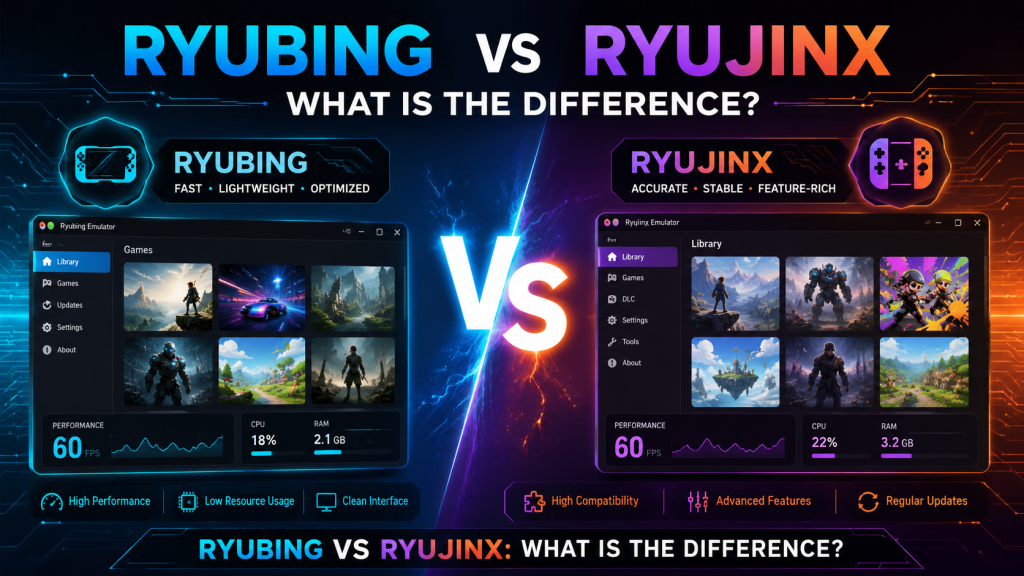
Read More: Ryubing vs Ryujinx: What Is the Difference?
What Is Ryubing?
Ryubing is a Nintendo Switch emulator project based on the legacy of Ryujinx. It allows users to run compatible Nintendo Switch titles on a computer instead of the original console hardware. Like other emulators, Ryubing depends heavily on your PC hardware, game compatibility, firmware setup, and graphics settings.
Ryubing is mainly used by people who want better control options, higher resolution, smoother gameplay, and a PC-based gaming experience. However, it is important to remember that you should only use Ryubing with games, firmware, and files that you legally own and have dumped from your own console.
Minimum PC Requirements for Ryubing
Before installing Ryubing, make sure your PC is powerful enough to run it properly. Emulation can be demanding, so weak hardware may cause lag, crashes, or slow loading.
Basic Requirements
| Component | Recommended Requirement |
|---|---|
| Operating System | Windows 10 or Windows 11 64-bit |
| Processor | Modern Intel or AMD CPU |
| RAM | 8GB minimum, 16GB recommended |
| Graphics Card | Vulkan or OpenGL compatible GPU |
| Storage | SSD recommended for faster loading |
| Controller | Keyboard, Xbox controller, PlayStation controller, or Switch-style controller |
For the best experience, use updated GPU drivers and a modern processor with good single-core performance.
Is Ryubing Safe to Install on PC?
Ryubing can be safe if you download it from trusted sources and avoid modified files from random websites. Many problems happen when users download fake emulator builds, bundled installers, or unsafe files from third-party pages.
To stay safe:
- Download Ryubing only from trusted official or community sources.
- Avoid websites that force extra installers.
- Do not download random prod keys, firmware, or game files from the internet.
- Scan downloaded files with your antivirus.
- Keep your graphics drivers updated.
- Use only legally obtained game files.
Safety mostly depends on where you download the emulator and how you use it.
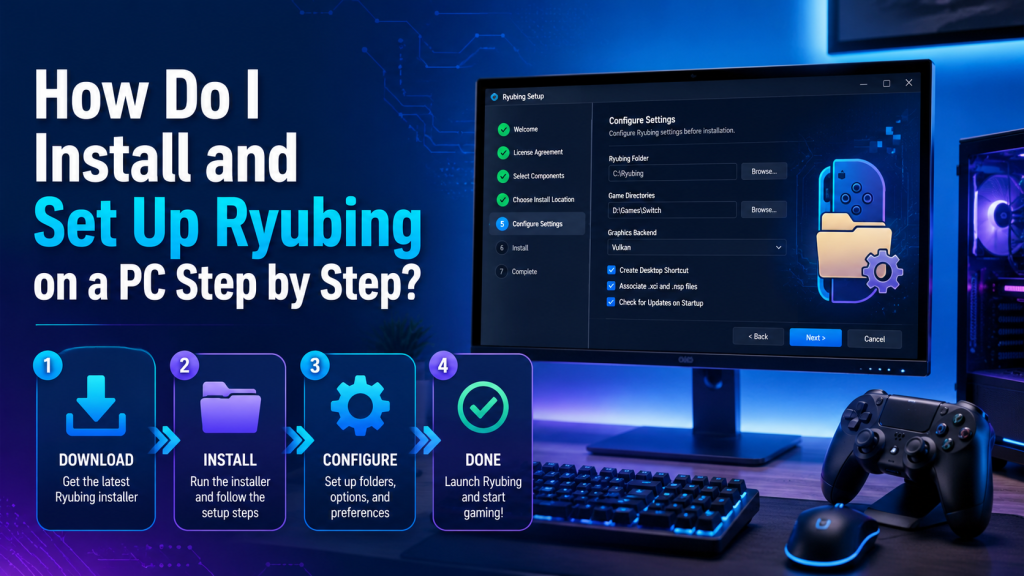
How to Install Ryubing on a PC Step by Step
Follow these steps carefully to install Ryubing on your Windows PC.
Step 1: Download Ryubing for Windows
First, visit a trusted Ryubing source and download the latest Windows version. The file usually comes as a compressed ZIP archive or an installer package, depending on the release.
After downloading, check the file name and make sure it looks like a real Ryubing release. Avoid files with strange names, unknown extensions, or extra download managers.
Step 2: Extract the Ryubing Files
If Ryubing is downloaded as a ZIP file, right-click the file and choose “Extract All.” You can extract it to a simple location such as:
C:\Ryubing
or
Documents\Ryubing
Avoid placing the emulator inside temporary folders or deep system folders because this can sometimes cause permission problems.
Step 3: Run Ryubing for the First Time
Open the extracted folder and double-click the Ryubing application file. On the first launch, Windows may show a security warning because the app is new or downloaded from the web.
If you downloaded it from a trusted source, choose “Run anyway.” Ryubing will then create its basic user folders and configuration files.
At this stage, the emulator may open with an empty game list. That is normal because you have not added your game directory yet.
Step 4: Install Required Firmware
Ryubing needs Nintendo Switch firmware files to work correctly. These files should come from your own Nintendo Switch console. Firmware is required for many games and system functions.
In Ryubing, look for an option such as:
Tools > Install Firmware
Then choose the firmware file or folder that you dumped from your own console. Once installed, Ryubing should show the firmware version inside the settings or system information area.
Do not download firmware from unknown websites because it may be unsafe and may violate copyright rules.
Step 5: Add Your Product Keys
Ryubing also needs key files to decrypt and run your legally owned game files. These keys should also be dumped from your own Nintendo Switch.
Usually, the required file is named something like:
prod.keys
Place the keys in the correct Ryubing system folder. Many emulator builds also include a shortcut option that opens the required folder directly.
If available, use:
File > Open Ryubing Folder
Then place your key file inside the system folder.
After adding the keys, restart Ryubing so it can detect them correctly.
Step 6: Add Your Game Folder
Once firmware and keys are ready, you can add your legally owned game files to Ryubing.
Open the Ryubing settings and find the game directories option. Add the folder where your dumped game files are stored.
Common game file formats may include:
- .xci
- .nsp
- .nca
After adding the folder, save the settings. Ryubing should scan the directory and show your games in the main list.
Step 7: Configure Graphics Settings
Graphics settings are very important because they affect speed, stability, and visual quality.
Open the settings menu and go to the graphics section. If your GPU supports it, Vulkan is usually a good option for performance. OpenGL may work better for some systems or older GPUs, but Vulkan is often preferred on modern PCs.
Recommended beginner graphics settings:
| Setting | Recommended Option |
|---|---|
| Graphics Backend | Vulkan |
| Resolution Scale | 1x or 2x |
| VSync | Enabled |
| Shader Cache | Enabled |
| Aspect Ratio | 16:9 |
| Fullscreen Mode | Optional |
If your game is lagging, lower the resolution scale to 1x. If your PC is powerful, you can increase it for sharper visuals.
Step 8: Set Up Your Controller
Ryubing supports different input methods, including keyboard and controllers. For the best experience, a controller is recommended.
Go to the input or controller settings. Select your controller device, then map the buttons one by one. If you are using an Xbox controller, many buttons may map automatically. PlayStation and generic controllers may need manual setup.
Important controls to configure:
- Left stick
- Right stick
- A, B, X, Y buttons
- L and R buttons
- ZL and ZR triggers
- Plus and minus buttons
- D-pad
- Home button if supported
After mapping, save your controller profile so you do not need to set it again.
Step 9: Adjust Audio Settings
Most users can keep audio settings on default. However, if you hear crackling, delay, or no sound, open the audio section and try a different audio backend if available.
Also make sure your Windows sound device is working correctly before changing emulator settings.
Step 10: Launch a Game
Now return to the Ryubing main window and double-click a game from your list. The first launch may take longer because the emulator may need to compile shaders and prepare game data.
During the first few minutes, you may notice small stutters. This is normal for many emulators because shader cache is being built. After playing for a while, the same areas may become smoother.
Best Ryubing Settings for Better Performance
If Ryubing runs slowly on your PC, try these simple performance tips.
Use Vulkan
Vulkan often gives better performance on modern graphics cards. If OpenGL is slow, switch to Vulkan and test again.
Keep Resolution Scale Low
Higher resolution looks better, but it also uses more GPU power. Start with 1x resolution. Increase it only if your PC can handle it.
Update GPU Drivers
Outdated drivers can cause crashes, black screens, or poor performance. Update your NVIDIA, AMD, or Intel graphics drivers from the official website.
Close Background Apps
Close browsers, screen recorders, launchers, and heavy background programs before running Ryubing. This gives more CPU and RAM to the emulator.
Use an SSD
Games may load faster from an SSD compared to a slow hard drive. If possible, keep Ryubing and your games on SSD storage.
Common Ryubing Setup Problems and Fixes
Even after correct installation, some users may face issues. Here are common problems and simple fixes.
Ryubing Does Not Open
If Ryubing does not open, try these fixes:
- Restart your PC.
- Run Ryubing as administrator.
- Make sure Windows is fully updated.
- Re-extract the emulator files.
- Check if antivirus blocked any files.
- Install required desktop runtime files if the app asks for them.
Games Are Not Showing in the List
If your games do not appear:
- Make sure the game folder is added in settings.
- Check that the game files are in supported formats.
- Restart Ryubing after adding the folder.
- Make sure your key file is installed correctly.
- Avoid placing games inside protected system folders.
Firmware Is Not Detected
If firmware is not detected:
- Reinstall the firmware from the Ryubing tools menu.
- Make sure the firmware files are not corrupted.
- Use firmware dumped from your own console.
- Restart Ryubing after installation.
Controller Is Not Working
If your controller does not work:
- Reconnect the controller.
- Try a different USB port.
- Check Windows controller settings.
- Remap the controls in Ryubing.
- Save the controller profile.
- Restart the emulator.
Game Is Lagging or Stuttering
If gameplay is slow:
- Lower resolution scale.
- Use Vulkan.
- Close background apps.
- Update GPU drivers.
- Enable shader cache.
- Use a performance power plan in Windows.
- Make sure your laptop is plugged in.
Black Screen When Starting a Game
A black screen can happen because of wrong settings, missing files, or compatibility issues.
Try these fixes:
- Switch between Vulkan and OpenGL.
- Update graphics drivers.
- Reinstall firmware.
- Check if the game file is valid.
- Reset graphics settings.
- Try launching another game to test compatibility.
Ryubing Crashes While Playing
If Ryubing crashes during gameplay:
- Update to the latest version.
- Lower graphics settings.
- Disable mods or cheats if you use any.
- Clear shader cache if it becomes corrupted.
- Make sure your PC is not overheating.
- Check game compatibility information if available.
Tips for a Smooth Ryubing Experience
To get the best results from Ryubing, keep your setup clean and organized.
Use separate folders for the emulator, games, firmware backups, and controller profiles. Keep Ryubing updated, but avoid unstable builds if you want a more reliable experience. Always back up your save files before making major changes.
It is also a good idea to test one game at a time. If one game has issues, do not assume the entire emulator is broken. Some games may need different settings or may not be fully compatible yet.
Is Ryubing Good for Beginners?
Yes, Ryubing can be beginner-friendly once it is properly installed. The hardest part is usually the first setup, especially firmware, keys, and controller mapping. After that, daily use is simple. You open the emulator, choose a game, and play.
Beginners should start with default settings, use Vulkan if supported, keep resolution at 1x, and avoid advanced options until they understand how the emulator works.
Legal Reminder Before Using Ryubing
Ryubing should be used only with legally owned games and files. You should not download pirated games, keys, or firmware from the internet. Emulator software itself can be legal, but using copyrighted files without permission can create legal and safety problems.
The safest method is to use your own console, your own game copies, and your own dumped files.
Conclusion
Installing and setting up Ryubing on a PC is simple when you follow the process step by step. First, download Ryubing from a trusted source. Then extract the files, install your legally obtained firmware, add your keys, set your game folder, configure graphics, map your controller, and launch your game.
For better performance, use Vulkan, update your GPU drivers, lower resolution scale if needed, and close unnecessary background apps. If something does not work, check the setup basics first because most Ryubing problems are caused by missing firmware, incorrect keys, unsupported game files, or outdated drivers.
With the right setup, Ryubing can provide a smooth and flexible way to enjoy compatible Nintendo Switch games on your PC.