Setting up a controller in Ryubing can make your gameplay feel smoother, more natural, and much closer to a real console experience. While keyboard controls can work for basic navigation, most players prefer using a gamepad because it gives better movement control, easier button access, and a more comfortable gaming setup.
Whether you are using an Xbox controller, PlayStation controller, Nintendo Switch Pro Controller, Joy-Cons, or a third-party USB/Bluetooth gamepad, Ryubing allows you to configure your input settings so your controller works properly with supported games. In this guide, you will learn how to set up a controller in Ryubing step by step, how to map buttons correctly, and how to improve your controller settings for better gameplay.
Read More: Why Is Ryubing Running Slow and How Can I Improve Performance?
Why Controller Setup Matters in Ryubing
A good controller setup can completely change how a game feels. Many games are designed around analog sticks, triggers, shoulder buttons, and motion-style input. If your controller is not configured correctly, you may face problems like delayed input, wrong button mapping, drifting sticks, or buttons not responding at all.
By setting up your controller properly in Ryubing, you can enjoy:
- More accurate movement
- Better camera control
- Comfortable button layout
- Faster reaction time
- Smoother gameplay experience
- Fewer input-related issues
For action, racing, fighting, platformer, and adventure games, a controller usually provides a much better experience than a keyboard.
Best Controllers to Use with Ryubing
Ryubing can work with different types of controllers, but some are easier to configure than others. Here are some common options:
| Controller Type | Connection | Best For |
|---|---|---|
| Xbox Controller | USB or Bluetooth | Easy setup and strong compatibility |
| PlayStation Controller | USB or Bluetooth | Comfortable layout and good analog sticks |
| Nintendo Switch Pro Controller | USB or Bluetooth | Console-like experience |
| Joy-Cons | Bluetooth | Games that need separate left and right controls |
| Generic Gamepad | USB or Bluetooth | Budget-friendly basic gameplay |
For most users, an Xbox controller is the easiest choice because Windows usually detects it automatically. PlayStation and Nintendo controllers can also work well, but they may need extra checking if buttons are not detected correctly.
How to Connect Your Controller Before Opening Ryubing
Before changing any settings inside Ryubing, connect your controller to your computer first. This helps Ryubing detect the device properly.
For USB Controllers
Plug your controller into your PC using a working USB cable. Wait a few seconds until your system recognizes it. If the controller has a light indicator, make sure it turns on.
For Bluetooth Controllers
Turn on Bluetooth on your PC, put your controller into pairing mode, and connect it through your system’s Bluetooth settings. Once paired, test the controller by pressing a few buttons to confirm it is active.
Quick Tip
Always connect the controller before launching Ryubing. If you open Ryubing first and then connect the controller, it may not appear in the input list until you restart the emulator.
How to Set Up a Controller in Ryubing
Follow these simple steps to configure your controller in Ryubing.
Step 1: Open Ryubing
Start Ryubing on your computer and wait for the main window to load completely. Make sure your controller is already connected before moving to the input settings.
Step 2: Go to Input Settings
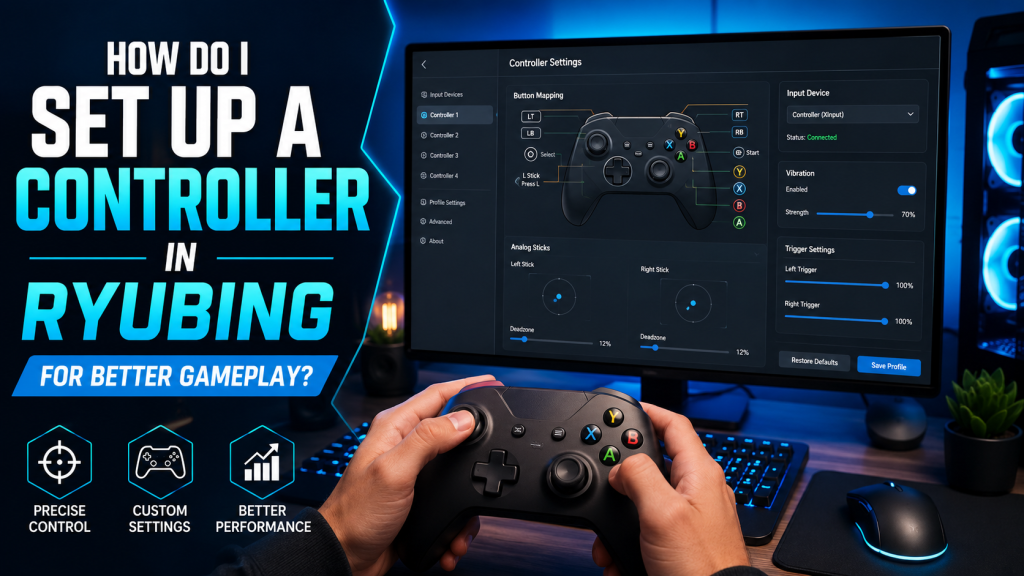
Open the settings menu and look for the input or controller configuration section. This is where you can choose your controller, map buttons, and adjust player controls.
The exact menu name may vary slightly depending on your Ryubing build, but it is usually found under options, settings, or input configuration.
Step 3: Select the Player Slot
Most games use Player 1 as the main controller slot. Select Player 1 if you are setting up your main controller.
If you want to play multiplayer, you can also configure Player 2, Player 3, or Player 4 separately. Each player should have a different controller assigned to avoid input conflicts.
Step 4: Choose Your Controller Device
In the input device list, select your connected controller. You may see names like:
- Xbox Wireless Controller
- DualSense Wireless Controller
- Wireless Controller
- Pro Controller
- XInput Controller
- Generic USB Gamepad
Choose the device that matches your controller. If you see more than one option, test each one and use the one that responds correctly.
Step 5: Select the Controller Type
Ryubing may let you choose a controller style such as Pro Controller, Handheld, Joy-Con Pair, or Single Joy-Con. For most games, Pro Controller is the best option because it gives a full button layout with analog sticks, triggers, and shoulder buttons.
Use Pro Controller if you are using:
- Xbox controller
- PlayStation controller
- Switch Pro Controller
- Most third-party gamepads
Use Joy-Con options only if you are specifically using Joy-Cons or a game requires that style of input.
Step 6: Map the Buttons Correctly
Now map each controller button to the correct action. Common mappings include:
| Ryubing Input | Controller Button |
|---|---|
| A | Bottom/right face button depending on layout |
| B | Bottom/left face button depending on layout |
| X | Top/left face button depending on layout |
| Y | Top/right face button depending on layout |
| L | Left shoulder button |
| R | Right shoulder button |
| ZL | Left trigger |
| ZR | Right trigger |
| Plus | Start/Menu button |
| Minus | Select/View button |
| Left Stick | Left analog stick |
| Right Stick | Right analog stick |
| D-Pad | Directional pad |
Different controllers use different button labels, so do not worry if the letters do not visually match. The goal is to make the gameplay feel natural.
Step 7: Test the Controller Input
After mapping the buttons, test each input before launching a game. Move both analog sticks, press each button, and check if the correct input lights up or responds inside the configuration screen.
If a button does not respond, remap it again. If the analog sticks feel reversed or incorrect, check the stick direction settings.
Step 8: Save Your Controller Profile
Once everything works properly, save your controller settings. Some Ryubing builds may allow you to save input profiles, which is helpful if you use more than one controller.
You can create separate profiles for:
- Xbox controller
- PlayStation controller
- Pro Controller
- Multiplayer setup
- Keyboard backup controls
Saving a profile helps you avoid setting up the same controller again later.
Best Controller Settings for Better Gameplay
After basic setup, you can improve your gameplay by adjusting a few extra settings.
Adjust Stick Deadzone
Deadzone controls how much movement is ignored near the center of the analog stick. If your character moves by itself, your controller may have stick drift. Increasing the deadzone slightly can help.
Recommended deadzone:
- 0.10 to 0.15 for most controllers
- 0.20 if your stick has drift
- Lower values if you want faster response
Do not set the deadzone too high, because it can make movement feel slow or less accurate.
Check Trigger Sensitivity
Some games use triggers for racing, aiming, or special actions. If your triggers feel too sensitive or do not respond fully, remap them and test again.
For Xbox and PlayStation controllers, triggers usually work best when detected as analog inputs.
Use Wired Connection for Lower Input Delay
Bluetooth is convenient, but a wired USB connection usually gives more stable input. If you notice delay, random disconnects, or missed button presses, try using a USB cable.
A wired connection is especially helpful for fast games where timing matters.
Enable Motion Controls Only When Needed
Some games may use motion input. If your controller supports motion controls, you can configure them if the option is available in your Ryubing build.
However, if you do not need motion controls, keep the setup simple. Extra input options can sometimes create confusion if they are not required for the game you are playing.
Common Controller Problems in Ryubing and How to Fix Them
Controller Not Detected
If Ryubing does not detect your controller, try these fixes:
- Restart Ryubing after connecting the controller
- Use a different USB cable
- Reconnect Bluetooth
- Check if the controller works in Windows settings
- Update controller drivers
- Try another USB port
- Restart your PC
Make sure the controller is connected before opening Ryubing.
Buttons Are Mapped Wrong
If buttons do not match your gameplay expectations, open input settings and remap them manually. This is common with PlayStation and generic controllers because their button labels may not match the default layout.
Analog Stick Is Moving by Itself
This is usually caused by stick drift. Increase the deadzone slightly in the controller settings. If the issue continues, test another controller to confirm whether the problem is with the hardware.
Controller Disconnects During Gameplay
If your controller disconnects, check the battery level, Bluetooth connection, and USB cable. For long gaming sessions, a wired connection is usually more reliable.
Two Controllers Control the Same Player
This can happen when multiple devices are assigned to the same player slot. Go to input settings and make sure each controller is assigned to a separate player.
Best Button Layout for Comfortable Gameplay
The best layout depends on your controller, but the main goal is comfort. Keep the most used buttons easy to reach.
For example:
- Use face buttons for jump, attack, confirm, and cancel
- Use triggers for aiming, braking, or special actions
- Use shoulder buttons for quick actions
- Use sticks for movement and camera
- Use D-pad for menus or item selection
After setting everything up, play for a few minutes and adjust anything that feels uncomfortable.
Should You Use Keyboard or Controller in Ryubing?
You can use a keyboard, but a controller is usually better for most games. Keyboard controls can feel stiff for movement, especially in games that need smooth analog input.
A controller is better for:
- Platform games
- Racing games
- Fighting games
- Adventure games
- Action games
- Games with camera control
A keyboard may still be useful for menu navigation or simple games, but for better gameplay, a controller is the recommended option.
Tips for Smoother Gameplay with a Controller
To get the best experience, follow these simple tips:
- Keep your controller firmware updated
- Use a wired connection if Bluetooth feels delayed
- Save separate profiles for different controllers
- Test controls before starting long gameplay sessions
- Increase deadzone if you notice stick drift
- Avoid using low-quality USB cables
- Keep Bluetooth devices close to your PC
- Remap buttons based on comfort, not just default labels
Small adjustments can make gameplay feel much better.
Safety and Legal Note
Ryubing should only be used with games and files that you legally own and are allowed to use. Avoid downloading unknown files from unsafe sources, and always respect copyright rules in your region. This also helps keep your system safer from malware, fake downloads, and broken game files.
Conclusion
Setting up a controller in Ryubing is one of the best ways to improve your gameplay experience. Once your controller is connected, selected, mapped, tested, and saved, games can feel much smoother and easier to control.
For the best results, use a reliable controller, connect it before opening Ryubing, choose the correct player slot, map every button carefully, and adjust deadzone settings if needed. If you face problems like wrong button mapping, stick drift, or controller detection issues, most of them can be fixed from the input settings.
A properly configured controller makes Ryubing more comfortable, responsive, and enjoyable, especially for games that depend on smooth movement and quick reactions.