Keeping Ryubing updated is one of the best ways to improve performance, fix bugs, and enjoy a smoother Nintendo Switch emulation experience on your PC. Like most emulator projects, Ryubing may receive new builds, patches, compatibility improvements, graphics fixes, and stability updates over time. If you are using an older version, you may face crashes, slow performance, missing features, or problems launching certain games.
The good news is that updating Ryubing is usually simple. You mainly need to download the latest available version from a trusted source, replace the old application files carefully, and make sure your existing keys, firmware, games, saves, and settings remain safe. In this guide, you will learn how to update Ryubing step by step in a safe and beginner-friendly way.
Read More: How Do I Set Up a Controller in Ryubing for Better Gameplay?
Why Should You Update Ryubing?
Updating Ryubing is important because every new version can bring useful improvements. Even if your current version is working fine, an update may still make the emulator more stable and compatible with more games.
Here are the main reasons to update Ryubing:
- Better game compatibility
- Improved emulator performance
- Bug fixes and crash fixes
- Updated graphics and audio handling
- Better controller support
- Security and stability improvements
- Support for newer system files or firmware
- Fixes for known issues in older builds
If Ryubing is not launching properly, running slowly, or failing to open some games, updating to the latest available version should be one of the first things you try.
Before You Update Ryubing
Before installing any new version, it is important to protect your existing data. Many users make the mistake of deleting the old folder without backing up important files. This can cause loss of save data, game settings, profiles, firmware files, or keys.
Backup Important Ryubing Files
Before updating Ryubing, back up these important items:
| Item | Why It Matters |
|---|---|
| Save data | Keeps your game progress safe |
| Firmware | Required for proper emulator setup |
| Prod keys/title keys | Needed to run supported game files |
| Controller settings | Saves your input configuration |
| Game directory settings | Keeps your game library linked |
| Mods and DLC settings | Prevents extra setup after update |
You do not always need to back up everything manually if Ryubing stores user data separately from the application folder. However, making a backup is always a safer choice.
How to Check Your Current Ryubing Version
Before updating, you may want to check which version you are currently using.
Follow these simple steps:
- Open Ryubing on your computer.
- Go to the main menu.
- Look for an option like Help, About, or About Ryubing.
- Check the version number shown there.
- Compare it with the latest version available from the official or trusted release source.
If your installed version is older than the latest available build, you can update it.
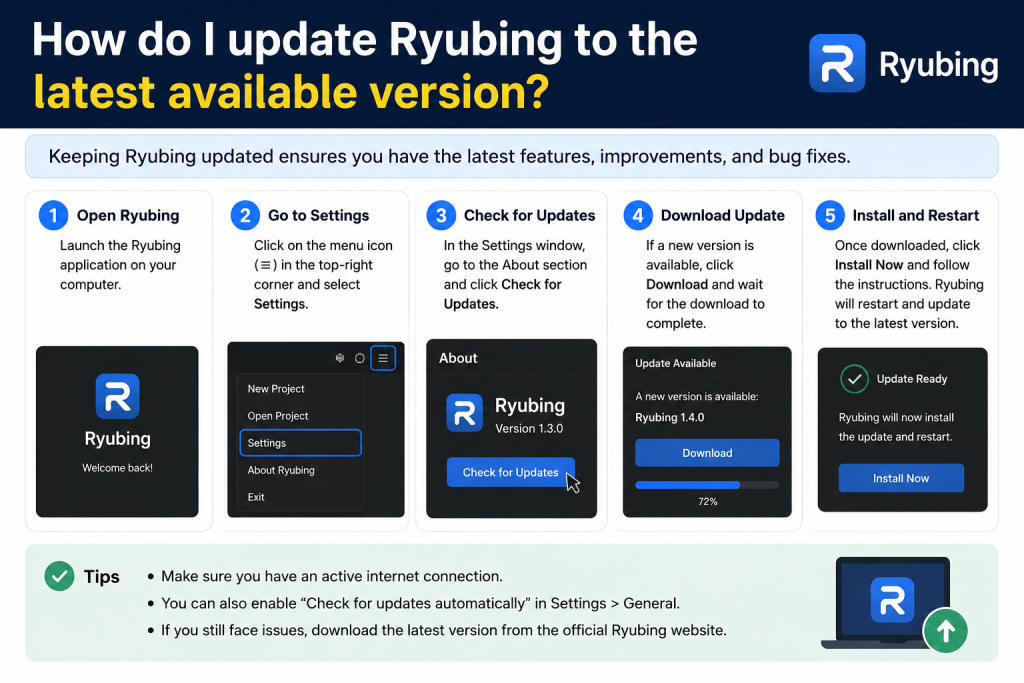
How to Update Ryubing to the Latest Version
The update process can be slightly different depending on your operating system, but the basic idea is the same: download the latest build, keep your user data safe, and replace the old program files with the new ones.
Step 1: Close Ryubing Completely
Before updating, make sure Ryubing is fully closed.
Do not update while the emulator is running. If Ryubing is open in the background, the update may fail or some files may not replace correctly.
To be safe:
- Close the Ryubing window.
- Check the system tray if needed.
- Open Task Manager on Windows if the app is still running.
- End the Ryubing process only if it does not close normally.
Step 2: Download the Latest Ryubing Version
Now download the latest available Ryubing version from a trusted source. Avoid random third-party download websites because they may offer outdated, modified, or unsafe files.
When downloading, make sure you choose the correct version for your system:
- Windows 64-bit
- Windows ARM64, if supported
- Linux
- Linux ARM64, if supported
- macOS Intel
- macOS Apple Silicon, if supported
Downloading the wrong build may cause the emulator not to open.
Step 3: Extract the New Version
Most Ryubing builds come in a compressed file such as ZIP, TAR, or another archive format.
After downloading:
- Right-click the downloaded archive.
- Choose Extract All or use a tool like 7-Zip.
- Extract it to a new folder.
- Do not place it directly inside the old Ryubing folder yet.
Keeping the new version in a separate folder first helps prevent file conflicts.
Step 4: Backup Your Old Ryubing Folder
Before replacing anything, create a backup of your current Ryubing folder.
You can rename the old folder like this:
Ryubing-old-backup
This gives you a safe copy in case the new version has an issue or you need to restore your previous setup.
Step 5: Replace the Application Files
Now move the new Ryubing files into the location where you want to run the emulator.
There are two safe ways to do this:
Option 1: Use a Fresh Folder
This is the cleaner method.
- Keep the old Ryubing folder as backup.
- Place the new Ryubing folder somewhere easy to access.
- Open the new Ryubing executable file.
- Check if your settings and games appear automatically.
This method is safer because it avoids mixing old and new program files.
Option 2: Replace Old Files Manually
If you prefer to keep the same folder location:
- Backup the old folder first.
- Delete only the old program files.
- Copy the new program files into the folder.
- Do not delete user data folders unless you know what they contain.
This method works, but beginners should use the fresh folder method to avoid mistakes.
How to Update Ryubing on Windows
Updating Ryubing on Windows is usually simple.
Windows Update Steps
- Close Ryubing completely.
- Download the latest Windows build.
- Extract the ZIP file.
- Backup your old Ryubing folder.
- Open the new Ryubing folder.
- Run the Ryubing application file.
- Check your games, saves, firmware, and settings.
- If everything works, you can keep the new version and delete the old backup later.
Important Windows Tip
If Windows blocks the file, right-click the Ryubing executable, open Properties, and check if there is an Unblock option. Only do this if you downloaded Ryubing from a trusted source.
How to Update Ryubing on Linux
Linux users may install Ryubing in different ways. Some users run a portable build, while others may use a package manager or community package.
If You Use a Portable Linux Build
- Close Ryubing.
- Download the latest Linux build.
- Extract the archive.
- Give permission if needed.
- Run the new executable.
- Confirm your settings and game directory.
If the file does not run, you may need to allow execution permission using your file manager or terminal.
If You Use a Package Manager
If Ryubing is installed through a package manager or software center, update it from there. This is usually safer because the package manager handles files automatically.
You can check for updates through:
- Software Center
- Flatpak update tools
- Terminal package commands
- App manager used by your Linux distribution
How to Update Ryubing on macOS
For macOS, the update process usually involves replacing the old app with the new one.
macOS Update Steps
- Close Ryubing.
- Download the latest macOS build.
- Open the downloaded archive or DMG file.
- Move the new Ryubing app to the Applications folder.
- Replace the old version if asked.
- Open Ryubing and check your settings.
macOS Security Note
macOS may warn you when opening apps downloaded from the internet. Only continue if the file came from a trusted source. Avoid unknown mirrors or modified builds.
Will Updating Ryubing Delete My Saves?
In most cases, updating Ryubing should not delete your save files if you only replace the application files. Save data is usually stored in a separate user data folder, not inside the main program folder.
However, you should still create a backup before updating. This is especially important if you are not sure where your save files are stored.
To stay safe:
- Back up save data before updating.
- Do not delete the user folder.
- Do not remove firmware or keys unless you are resetting the emulator.
- Keep the old Ryubing folder until the new version works properly.
Do I Need to Update Firmware and Keys Too?
Updating Ryubing and updating firmware are not always the same thing. Ryubing is the emulator application, while firmware and keys are separate files needed for setup and compatibility.
You may need to update firmware if:
- A game requires a newer firmware version.
- Ryubing shows a firmware-related error.
- Newer game updates or DLC are not loading.
- The emulator instructions recommend a newer firmware version.
You should only use firmware and keys that you legally own and dump from your own Nintendo Switch console. Avoid downloading copyrighted system files from random websites.
Common Problems After Updating Ryubing
Sometimes users update Ryubing and then face small issues. Most of these problems are easy to fix.
Ryubing Does Not Open
Try these fixes:
- Make sure you downloaded the correct build for your system.
- Extract the files fully before running.
- Restart your computer.
- Install required runtime packages if needed.
- Check if antivirus software blocked the file.
- Try running the old backup version to confirm the issue.
Games Are Missing After Update
If your game list is empty, the game directory may need to be added again.
To fix it:
- Open Ryubing settings.
- Go to the game directories section.
- Add your game folder again.
- Save settings.
- Restart Ryubing.
Controller Settings Are Gone
If your controller layout changed after updating:
- Reconnect your controller.
- Open input settings.
- Select the correct controller.
- Re-map buttons if needed.
- Save the profile again.
Saves Are Not Showing
If save data is missing, do not panic. It may still be in your old user data folder.
Check your backup folder and look for save data. If needed, copy the save files back into the correct Ryubing user data location.
Best Practices for Updating Ryubing Safely
To avoid problems, follow these simple best practices every time you update Ryubing:
- Always close Ryubing before updating.
- Download only from trusted sources.
- Keep a backup of the old version.
- Do not delete user data folders.
- Test the new version before removing the backup.
- Keep firmware and keys legally obtained.
- Avoid mixing files from different emulator builds.
- Read release notes if available.
- Update only when needed or when a stable version is available.
Stable Build vs Canary Build: Which One Should You Use?
Some emulator projects may offer stable and canary builds. A stable build is usually better for most users because it focuses on reliability. A canary or experimental build may include newer changes, but it can also have bugs.
Choose Stable Build If:
- You want fewer crashes.
- You prefer a smooth experience.
- You do not want to troubleshoot often.
- You mainly want to play games normally.
Choose Canary Build If:
- You want the newest features.
- You are comfortable with bugs.
- You like testing new changes.
- You can restore backups if something breaks.
For most beginners, the stable version is the better choice.
How Often Should You Update Ryubing?
You do not need to update Ryubing every day unless you are testing new builds. For normal users, updating when there is a major improvement, bug fix, or compatibility update is enough.
You should update Ryubing when:
- A game stops working.
- A new version fixes an issue you have.
- Performance improves in a newer build.
- You are setting up Ryubing for the first time.
- Your current version is very old.
If your current version works perfectly, you can wait before updating.
Conclusion
Updating Ryubing to the latest available version is a simple but important step if you want better performance, improved compatibility, and fewer emulator issues. The safest method is to close Ryubing, download the newest trusted build, back up your old folder, install the new version in a clean folder, and check that your saves, firmware, keys, games, and settings are still working.
Always avoid untrusted download sources and never delete your old setup before testing the new version. With a careful update process, you can enjoy the latest Ryubing improvements without losing your data or breaking your setup.