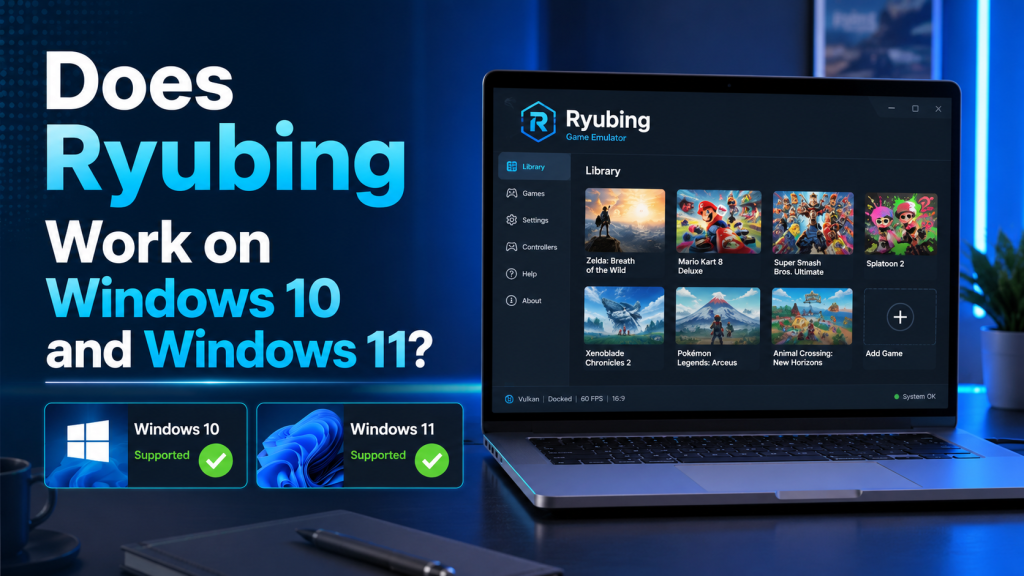
If you are planning to use Ryubing on your PC, one of the first questions you may ask is: does Ryubing work on Windows 10 and Windows 11? The simple answer is yes, Ryubing can work on both Windows 10 and Windows 11, as long as your system meets the basic hardware and software requirements.
Ryubing is known as an experimental Nintendo Switch emulator project that allows users to run Switch games on different desktop platforms. For Windows users, this means you can use Ryubing on modern Windows systems, but the final performance depends on your PC specifications, graphics drivers, game compatibility, and emulator settings.
Read More: How Do I Install and Set Up Ryubing on a PC Step by Step?
What Is Ryubing?
Ryubing is an emulator project designed to run Nintendo Switch games on desktop computers. Like other emulators, it tries to recreate the console environment on your PC so that compatible games can run without the original hardware.
Because Nintendo Switch emulation requires strong CPU and GPU performance, Ryubing works best on modern computers. A low-end PC may open the emulator, but it may not run games smoothly. That is why Windows version alone is not the only important factor. Your processor, graphics card, RAM, and drivers also matter a lot.
Does Ryubing Work on Windows 10?
Yes, Ryubing can work on Windows 10. Many emulator users still prefer Windows 10 because it is stable, familiar, and widely supported by gaming tools.
However, to use Ryubing properly on Windows 10, your system should be updated. An outdated Windows 10 installation may cause missing runtime errors, graphics issues, or performance problems.
For the best experience, make sure your Windows 10 PC has:
- A 64-bit version of Windows 10
- Updated graphics drivers
- A modern CPU with good single-core performance
- At least 8 GB RAM
- A dedicated GPU for better gameplay
- Required system runtimes installed
If your PC is old or uses very weak integrated graphics, Ryubing may still open, but games can lag, crash, or fail to load.
Does Ryubing Work on Windows 11?
Yes, Ryubing can also work on Windows 11. In fact, Windows 11 can be a good option for users with newer hardware because it is designed for modern processors, newer graphics drivers, and updated gaming features.
Windows 11 may offer smoother performance on some newer PCs, especially if your system has recent AMD, Intel, or NVIDIA hardware. But the difference between Windows 10 and Windows 11 is not always huge. In most cases, Ryubing performance depends more on your CPU, GPU, RAM, and emulator settings than the Windows version itself.
If your Windows 11 system is fully updated and your drivers are current, Ryubing should run well on supported hardware.
Windows 10 vs Windows 11: Which Is Better for Ryubing?
Both Windows 10 and Windows 11 can run Ryubing, but the better choice depends on your device.
| Feature | Windows 10 | Windows 11 |
|---|---|---|
| Compatibility | Good for most users | Good for newer systems |
| Stability | Very stable | Stable with modern hardware |
| Driver support | Strong | Strong and newer-focused |
| Gaming features | Good | Slightly more modern |
| Best for | Older and mid-range PCs | Newer PCs and laptops |
If your PC already runs Windows 10 smoothly, you do not need to upgrade only for Ryubing. If your PC came with Windows 11 or has newer hardware, Windows 11 is also a strong choice.
The most important thing is not whether you use Windows 10 or Windows 11. The most important thing is whether your PC has enough power to handle Switch emulation.
Recommended System Requirements for Ryubing on Windows
To get a smooth experience, your PC should meet decent hardware requirements. Ryubing may run on lower hardware, but performance may not be stable.
Minimum Requirements
- Windows 10 or Windows 11 64-bit
- Intel Core i5 or AMD Ryzen 5 processor
- 8 GB RAM
- GPU with Vulkan or OpenGL support
- Updated graphics drivers
- Enough storage space for emulator files and games
Recommended Requirements
- Windows 10 or Windows 11 64-bit
- Intel Core i7 / Ryzen 7 or better
- 16 GB RAM or more
- Dedicated NVIDIA, AMD, or modern Intel GPU
- SSD storage
- Latest GPU drivers
- Good cooling system for long gameplay sessions
For better results, a dedicated graphics card is highly recommended. Emulation can be demanding, and integrated graphics may struggle with many games.
Why Ryubing May Not Work Properly on Windows
Sometimes Ryubing may not work correctly even if you are using Windows 10 or Windows 11. This does not always mean the emulator is broken. Usually, the issue is related to missing files, outdated drivers, weak hardware, or incorrect settings.
Common reasons include:
- Outdated GPU drivers
- Missing required runtimes
- Unsupported graphics hardware
- Incorrect emulator configuration
- Corrupted game files
- Incompatible game version
- Low RAM or weak CPU
- Antivirus blocking emulator files
Before reinstalling Ryubing, it is better to check these basic issues first.
How to Fix Ryubing Problems on Windows 10 and Windows 11
If Ryubing is not opening, crashing, or running slowly, try these fixes.
Update Your Graphics Drivers
Graphics drivers are very important for emulator performance. If your GPU drivers are old, Ryubing may crash or show graphical errors.
Download the latest drivers from your GPU manufacturer, such as NVIDIA, AMD, or Intel. Avoid relying only on Windows Update because it may not always install the newest gaming drivers.
Update Windows
Make sure your Windows 10 or Windows 11 system is updated. Updates can fix system bugs, improve security, and provide better compatibility with software.
Install Required Runtimes
Some emulators need additional runtimes or system components to work properly. If Ryubing shows an error when opening, check whether any required framework or runtime is missing.
Use the Correct Graphics Backend
Ryubing may offer different graphics backend options such as Vulkan or OpenGL, depending on the build and settings. If one option causes problems, try switching to another.
For many modern GPUs, Vulkan often provides better performance, but results can vary by system.
Lower Emulator Settings
If games are lagging, reduce internal resolution, turn off heavy graphical enhancements, and use more balanced settings. High resolution scaling can look better, but it also increases GPU load.
Check Game Compatibility
Not every game will run perfectly. Some games may work smoothly, while others may have graphical bugs, crashes, or performance problems. Compatibility can also change with emulator updates.
Use an SSD
Using an SSD can help with faster loading and smoother file access. It may not solve every performance issue, but it can improve the overall experience compared to a slow hard drive.
Is Windows 11 Faster Than Windows 10 for Ryubing?
Windows 11 is not automatically faster than Windows 10 for Ryubing. On newer PCs, Windows 11 may perform slightly better because of updated driver support and modern system features. On older PCs, Windows 10 may feel lighter and more stable.
In real use, the difference usually comes from hardware. A powerful Windows 10 PC will perform better than a weak Windows 11 laptop. Similarly, a strong Windows 11 gaming PC will run Ryubing much better than an older Windows 10 office computer.
So instead of focusing only on the Windows version, focus on:
- CPU strength
- GPU performance
- RAM amount
- Driver updates
- Emulator settings
- Game compatibility
Can Ryubing Run on Low-End Windows PCs?
Ryubing may open on some low-end Windows PCs, but that does not mean it will provide a smooth gaming experience. Nintendo Switch emulation can be demanding, especially for 3D games.
Low-end PCs may face:
- Low FPS
- Audio stutter
- Long loading times
- Random crashes
- Graphical glitches
- High CPU usage
- Overheating
If your PC has only 4 GB RAM, an old dual-core CPU, or weak integrated graphics, Ryubing may not be practical for regular use. For a better experience, use a PC with at least 8 GB RAM and a decent processor.
Best Settings for Ryubing on Windows
The best settings depend on your hardware, but these general tips can help improve performance:
- Keep graphics drivers updated
- Use Vulkan if it works better on your GPU
- Start with default settings first
- Lower resolution scaling on weak PCs
- Close background apps before playing
- Use an SSD if possible
- Keep Windows power mode set to high performance
- Avoid running heavy apps while using the emulator
Do not apply too many advanced settings at once. Change one setting at a time and test performance. This makes it easier to find what works best for your system.
Is Ryubing Safe to Use on Windows?
Ryubing itself should only be downloaded from trusted sources. Because emulator-related software is often copied by unofficial websites, users should be careful. Fake download pages may include unwanted files, ads, or modified installers.
To stay safe:
- Download from official or trusted project pages
- Avoid suspicious “one-click installer” websites
- Scan files before running them
- Do not download random firmware or keys from unsafe sources
- Keep antivirus protection enabled
- Avoid cracked or bundled software
Also, remember that you should only use games and files you legally own. This keeps your setup safer and avoids legal problems.
Ryubing Not Opening on Windows: Quick Checklist
If Ryubing is not opening on Windows 10 or Windows 11, check this quick list:
- Are you using a 64-bit version of Windows?
- Are your GPU drivers updated?
- Did you extract the emulator files properly?
- Is your antivirus blocking the app?
- Are required runtimes installed?
- Is your PC powerful enough?
- Are you using the latest available version?
- Did you try running it as administrator?
- Did you restart your PC after updates?
- Are your emulator files corrupted?
These simple checks can fix many common startup problems.
Should You Use Ryubing on Windows 10 or Windows 11?
You can use Ryubing on both Windows 10 and Windows 11. If your current Windows version is stable and your hardware is good, there is no need to change your operating system just for the emulator.
Use Windows 10 if:
- Your PC is older
- You prefer a familiar interface
- Your system already runs smoothly
- Your drivers work well
Use Windows 11 if:
- Your PC is newer
- Your hardware officially supports Windows 11
- You want updated Windows gaming features
- Your drivers are optimized for Windows 11
Both versions can work well when properly configured.
Conclusion
So, does Ryubing work on Windows 10 and Windows 11? Yes, Ryubing can work on both operating systems. Windows 10 is a stable choice for many users, while Windows 11 is a good option for newer PCs. However, the real performance depends more on your hardware, drivers, and emulator settings than the Windows version alone.
If you want the best experience, use a 64-bit Windows system, keep your graphics drivers updated, make sure your PC meets the recommended requirements, and adjust the emulator settings based on your hardware.
Ryubing can be a useful option for users interested in Nintendo Switch emulation on PC, but like any experimental emulator, it may not run every game perfectly. With the right setup, both Windows 10 and Windows 11 users can enjoy a smoother and more stable experience.