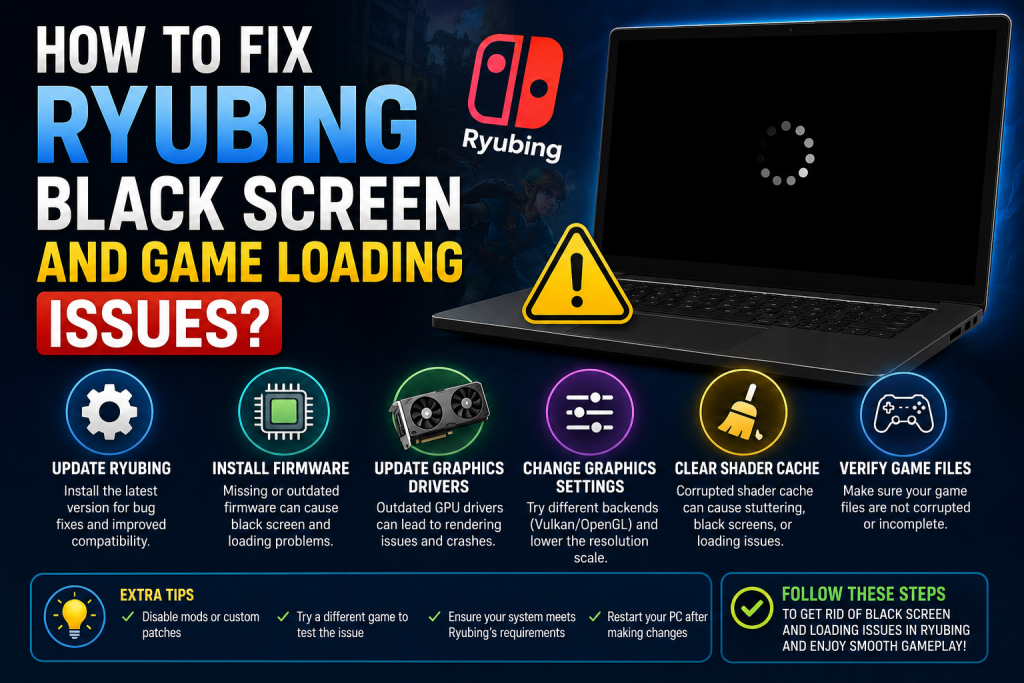
Running into a black screen or endless loading issue in Ryubing can be frustrating, especially when you’re eager to start playing your favorite games. These problems are among the most common issues users encounter and can occur for several reasons, including outdated firmware, incorrect emulator settings, corrupted game files, or graphics driver conflicts. Fortunately, most Ryubing black screen and game loading issues can be fixed with a few simple troubleshooting steps.
In this guide, you’ll learn the most effective solutions to identify the cause of the problem and get your games running smoothly again, whether you’re a beginner or an experienced emulator user.
Read More: How Do I Update Ryubing to the Latest Available Version?
Why Does Ryubing Show a Black Screen?
A black screen usually appears when the emulator fails to properly render graphics or load game data. This can happen due to outdated drivers, incompatible settings, corrupted game files, or shader cache problems.
In some cases, the game may appear stuck on a loading screen while the emulator continues running in the background. Understanding the cause helps you apply the right fix.
Check Your System Requirements
Before troubleshooting, make sure your computer meets the minimum requirements for Ryubing. Modern Nintendo Switch emulation requires a capable CPU, sufficient RAM, and a graphics card that supports the necessary rendering technologies.
If your hardware is below the recommended specifications, some games may fail to load or display a black screen during startup.
Update Ryubing to the Latest Version
Using an outdated version of Ryubing can cause compatibility issues with newer games and updates. Developers frequently release patches that fix rendering bugs, improve performance, and resolve loading problems.
Download and install the latest version of Ryubing, then test the affected game again.
Update Graphics Drivers
One of the most common causes of black screen issues is outdated GPU drivers. Graphics drivers are responsible for rendering game visuals, and old versions may not work correctly with modern emulators.
Visit your GPU manufacturer’s website and install the latest drivers for your graphics card. After updating, restart your computer and launch the game again.
Verify Game Files
Corrupted or incomplete game files can prevent Ryubing from loading games properly. If a game crashes, freezes, or displays a black screen immediately after launch, the game dump may be damaged.
Try verifying the integrity of your game files or obtain a fresh copy from your original game source. Reinstalling the game files often resolves loading issues.
Clear the Shader Cache
Shader cache files help improve performance by storing compiled graphics data. However, corrupted shader caches can lead to black screens, graphical glitches, and loading errors.
Locate Ryubing’s shader cache folder and delete the cache files for the affected game. The emulator will rebuild them automatically the next time you launch the game.
Although the first launch may take longer, this process often fixes rendering problems.
Switch Graphics Backend
Ryubing usually offers multiple graphics backends, such as Vulkan and OpenGL. Some games perform better with one backend than the other.
Open the emulator settings and switch to a different graphics API. Save the changes and restart the game.
Many users report that changing from OpenGL to Vulkan, or vice versa, instantly resolves black screen issues.
Disable Problematic Mods
Game modifications and patches can sometimes conflict with emulator updates. If you recently installed a mod and the game no longer loads correctly, disable all mods temporarily.
Launch the game without any modifications to determine whether a specific mod is causing the problem.
Once the game works normally, re-enable mods one by one until you identify the conflicting file.
Install the Latest Firmware and Keys
Certain games require updated firmware files and encryption keys to run correctly. Missing or outdated keys can prevent games from loading and may result in a permanent black screen.
Make sure you have the correct firmware version and compatible keys installed for your version of Ryubing.
After updating, restart the emulator and test the game again.
Adjust Graphics Settings
Some advanced graphics settings can cause compatibility issues on specific hardware configurations.
Try lowering graphical enhancements such as:
- Resolution scaling
- Anti-aliasing
- Anisotropic filtering
- Accuracy settings
Resetting graphics settings to default values can also help identify whether a configuration change is causing the issue.
Disable Third-Party Overlays
Applications such as screen recorders, FPS counters, and overlay tools may interfere with emulator rendering.
Temporarily disable software like Discord overlays, MSI Afterburner overlays, GeForce Experience overlays, or similar background applications.
Restart Ryubing and check whether the game loads correctly.
Reinstall Ryubing
If none of the previous solutions work, a clean reinstallation may solve the problem. Configuration files can occasionally become corrupted and prevent games from launching properly.
Back up your save data, uninstall Ryubing, remove leftover configuration folders, and install the latest version from scratch.
After reinstalling, import your games and test them again.
Common Fixes at a Glance
When facing Ryubing black screen or loading issues, focus on these key solutions:
- Update Ryubing
- Install the latest GPU drivers
- Clear shader cache
- Verify game files
- Switch graphics backend
- Update firmware and keys
- Disable mods and overlays
- Reset graphics settings
- Reinstall the emulator if necessary
Conclusion
Ryubing black screen and game loading issues are usually caused by graphics settings, outdated drivers, corrupted cache files, or incompatible game data. In most cases, updating the emulator, clearing shader caches, and switching graphics backends can quickly resolve the problem.
By following the troubleshooting steps outlined above, you can identify the root cause and get your favorite games running smoothly again. Regularly updating Ryubing, your graphics drivers, and game files will help prevent similar issues in the future.