Ryubing can be a great option for users who want to run supported Nintendo Switch games on a PC, but sometimes it may feel slow, laggy, or unstable. You may notice low FPS, audio stutter, shader lag, long loading times, or sudden frame drops during gameplay. These issues can be frustrating, especially when your system seems powerful enough.
The good news is that Ryubing running slow does not always mean something is wrong with the emulator itself. In many cases, the problem comes from incorrect settings, weak hardware, outdated drivers, shader compilation, background apps, or game-specific compatibility issues. With the right adjustments, you can often improve Ryubing performance and enjoy smoother gameplay.
Read More: Does Ryubing Work on Windows 10 and Windows 11?
What Causes Ryubing to Run Slow?
Ryubing is an emulator, which means it has to recreate the behavior of Nintendo Switch hardware on your computer. This process requires a lot of CPU and GPU power. Unlike normal PC games, emulators often depend more on processor speed, memory performance, graphics drivers, and accurate configuration.
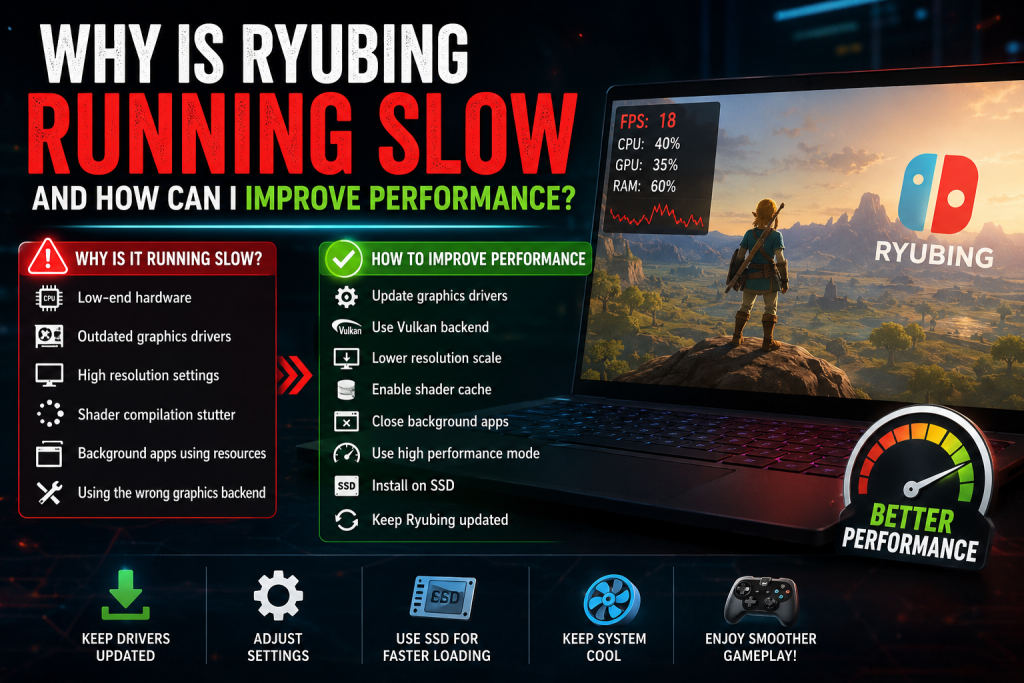
If Ryubing is running slow, the issue usually comes from one or more of these reasons:
- Your PC does not meet the recommended performance level
- Graphics drivers are outdated
- The wrong graphics backend is selected
- Shader cache is still building
- Resolution scale is too high
- Too many background programs are running
- Power-saving mode is limiting performance
- The game itself is demanding or not fully optimized
- Emulator settings are not properly configured
Understanding the cause makes it much easier to fix the problem.
Check Your PC Hardware First
Before changing advanced settings, check whether your computer is powerful enough for emulation. Ryubing performance depends mostly on your CPU, GPU, RAM, and storage speed.
CPU Performance
The CPU is one of the most important parts for Ryubing. A strong modern processor can make a big difference in frame rate and stability. If your CPU is old, low-power, or designed mainly for basic office work, Ryubing may struggle.
For better performance, use a modern multi-core CPU with strong single-core performance. Emulation often benefits from fast clock speeds, not just a high core count.
GPU Performance
Your graphics card also plays an important role, especially when using higher resolutions. If you are using integrated graphics, Ryubing may run slowly in many games. A dedicated GPU from NVIDIA, AMD, or Intel Arc usually performs better.
If your laptop has both integrated and dedicated graphics, make sure Ryubing is using the dedicated GPU.
RAM Requirements
Ryubing may run poorly if your system does not have enough RAM. For smooth performance, 16 GB RAM is usually better than 8 GB, especially if other apps are open in the background.
SSD vs HDD
If your games, emulator files, or shader cache are stored on a slow hard drive, loading times and stutters may increase. Moving Ryubing and your game files to an SSD can improve loading speed and reduce some performance issues.
Update Your Graphics Drivers
Outdated graphics drivers are one of the most common reasons Ryubing runs slow. Emulator performance often improves with newer GPU drivers because they include bug fixes, Vulkan improvements, OpenGL improvements, and better shader handling.
Update your graphics drivers from the official website of your GPU brand:
- NVIDIA users should install the latest Game Ready or Studio driver
- AMD users should install the latest Adrenalin driver
- Intel users should update Intel graphics drivers
Avoid relying only on Windows Update because it may install older drivers. After updating, restart your PC and test Ryubing again.
Use the Best Graphics Backend
Ryubing usually offers different graphics backend options, such as Vulkan or OpenGL. Choosing the right one can improve performance.
Vulkan
Vulkan is usually the better choice for most modern systems. It often gives smoother performance, better GPU usage, and fewer frame drops in many games.
OpenGL
OpenGL may work better for some older systems or specific games, but it can be slower depending on your hardware and driver support.
If Ryubing is running slow, try switching the graphics backend. Test the same game in the same area and compare FPS, stutters, and stability.
Lower the Resolution Scale
One of the easiest ways to improve Ryubing performance is to reduce the resolution scale. Many users increase resolution because it makes games look sharper, but higher resolution puts more pressure on the GPU.
If your game is lagging, set the resolution scale to native first. After that, test performance. If it runs smoothly, you can try increasing it slowly.
Recommended approach:
| Setting | Best For |
|---|---|
| Native Resolution | Best performance |
| 2x Resolution | Better visuals on stronger GPUs |
| 3x or higher | High-end systems only |
If your GPU is weak or your laptop gets hot, native resolution is usually the safest option.
Enable Shader Cache
Shader compilation can cause stutters, especially when you play a game for the first time. This happens because the emulator has to build shaders while the game is running.
If shader cache is available in your Ryubing settings, keep it enabled. Over time, gameplay may become smoother because Ryubing can reuse already compiled shaders instead of creating them again.
However, if your shader cache becomes corrupted or causes strange issues, clearing it and rebuilding it may help.
Close Background Apps
Ryubing needs enough system resources to run well. If many programs are open in the background, they can use CPU, RAM, disk, and GPU power.
Before launching Ryubing, close unnecessary apps such as:
- Web browsers with many tabs
- Screen recorders
- Video editors
- Game launchers
- Cloud sync tools
- Unused messaging apps
- Heavy antivirus scans
You can also open Task Manager and check which apps are using the most CPU, memory, or disk.
Set Your PC to High Performance Mode
Windows power settings can affect Ryubing performance. If your PC is using balanced mode or battery saver mode, your CPU and GPU may not run at full speed.
To improve performance:
- Open Windows Settings
- Go to Power settings
- Choose Best Performance or High Performance
- If you use a laptop, plug in the charger
- Make sure your GPU control panel is also set for performance
This is especially important for gaming laptops because they often reduce performance when running on battery.
Make Sure Ryubing Uses the Dedicated GPU
Many laptops have two graphics options: integrated graphics and dedicated graphics. If Ryubing is using integrated graphics, performance can be much slower.
To fix this on Windows:
- Open Settings
- Go to System
- Open Display
- Choose Graphics
- Add Ryubing if it is not listed
- Set it to High Performance
- Save the setting and restart Ryubing
You can also check your NVIDIA Control Panel or AMD Software to make sure Ryubing uses the dedicated GPU.
Adjust VSync Settings
VSync can affect smoothness, input delay, and frame rate. In some cases, VSync helps prevent screen tearing. In other cases, it may limit FPS or create input lag.
If Ryubing feels slow, test the game with VSync on and off. Some games may feel smoother with VSync enabled, while others may perform better without it.
Do not assume one setting is best for every game. Test both options and keep the one that gives stable gameplay.
Avoid Very High Graphics Enhancements
Ryubing may allow visual enhancements such as anti-aliasing, anisotropic filtering, scaling filters, and higher resolution. These can make games look better, but they may also reduce performance.
For better speed, use simple settings first:
- Resolution Scale: Native
- Anti-Aliasing: Off or low
- Anisotropic Filtering: Auto or low
- Scaling Filter: Bilinear or default
- Texture enhancements: Off if performance is poor
After the game becomes stable, increase settings one by one.
Keep Ryubing Updated
Using an old build may cause performance issues, crashes, or compatibility problems. Newer versions often include fixes and improvements. If Ryubing is running slow, check whether a newer release is available.
Before updating, it is a good idea to back up important saves and settings. This helps avoid losing progress if something changes after the update.
Check Game Updates and Compatibility
Not every game runs the same way in Ryubing. Some games are lightweight and run smoothly, while others are demanding or require specific settings. A game may also perform better after installing its official update.
If one game is slow but others run fine, the problem may be game-specific. In that case, check:
- Whether the game has updates
- Whether the game is known to be demanding
- Whether specific settings are recommended
- Whether mods are causing issues
- Whether the game runs better with another backend
Game compatibility can vary, so testing different settings is important.
Reduce Mods and Cheats
Mods, texture packs, 60 FPS patches, and cheats can affect performance. Some mods increase system load, while others may cause instability or frame drops.
If Ryubing became slow after adding a mod, disable the mod and test again. Start with a clean setup, then enable mods one by one to find the cause.
This method helps you identify whether the emulator is slow or a specific mod is creating the problem.
Improve Cooling and Reduce Thermal Throttling
If your PC or laptop gets too hot, the CPU and GPU may slow down automatically to protect the hardware. This is called thermal throttling, and it can cause sudden FPS drops.
To reduce overheating:
- Clean dust from fans and vents
- Use your laptop on a hard surface
- Avoid blocking air vents
- Use a cooling pad if needed
- Lower resolution and graphics settings
- Close background apps
- Keep room temperature reasonable
If performance is good at first but gets worse after a few minutes, overheating may be the reason.
Install Ryubing on an SSD
Ryubing can run from a hard drive, but an SSD usually gives a better experience. An SSD can reduce loading times and make file access faster.
For best results, keep these on an SSD:
- Ryubing emulator folder
- Game files
- Shader cache
- Save data folder, if possible
This may not always increase FPS, but it can improve overall smoothness and loading performance.
Check Antivirus or Security Software
Sometimes antivirus software scans emulator files while Ryubing is running. This can slow down loading, shader cache access, and game performance.
If you trust your Ryubing installation source, you can add the emulator folder to your antivirus exclusion list. Do this carefully and only for files you know are safe.
Never download emulator builds, firmware, keys, or game files from suspicious websites.
Use Legal Game Files Only
For safety and legality, only use game files, firmware, and related data that you legally own and have dumped yourself. Downloading copyrighted games from unknown sources can create legal and security risks.
It can also cause performance problems if the files are modified, incomplete, outdated, or corrupted.
Best Ryubing Performance Settings to Try
Here is a simple starting point for better Ryubing performance:
| Setting | Recommended Option |
|---|---|
| Graphics Backend | Vulkan first, OpenGL if needed |
| Resolution Scale | Native |
| Shader Cache | Enabled |
| VSync | Test both on and off |
| Anti-Aliasing | Off or low |
| Scaling Filter | Default or Bilinear |
| Background Apps | Closed |
| Power Mode | High Performance |
| GPU Selection | Dedicated GPU |
| Storage | SSD preferred |
These settings are not perfect for every game, but they are a good baseline if Ryubing is running slow.
Quick Fixes for Ryubing Lag
If you want faster results, try these quick fixes first:
- Update your GPU drivers
- Switch to Vulkan
- Lower resolution scale to native
- Enable shader cache
- Close background apps
- Set Windows power mode to high performance
- Use dedicated GPU
- Move Ryubing to an SSD
- Disable heavy mods
- Restart your PC and test again
These steps solve many common performance problems.
Why Ryubing Stutters Even on a Good PC
Even if your PC is powerful, Ryubing may still stutter sometimes. This does not always mean your hardware is weak. Stutters can happen because of shader compilation, game compatibility, background tasks, driver issues, or emulator updates.
The first few minutes of gameplay may be less smooth while shaders are being created. After the shader cache builds, the same area may run better the next time.
If stutters continue all the time, then you should check settings, drivers, cooling, and game-specific issues.
Final Thoughts
Ryubing running slow can happen for many reasons, but most performance issues can be improved with the right setup. Start with the basics: update your graphics drivers, use the best graphics backend, lower the resolution scale, enable shader cache, close background apps, and make sure your PC is using high performance mode.
If only one game runs poorly, the issue may be related to that game’s compatibility, updates, or mods. If every game runs slowly, your hardware, drivers, or global emulator settings may need attention.
By testing changes step by step, you can find the best Ryubing settings for your system and enjoy a smoother gaming experience.
FAQs About Ryubing Running Slow
Why is Ryubing running slow on my PC?
Ryubing may run slow because of weak hardware, outdated GPU drivers, high resolution settings, shader compilation, background apps, or incorrect emulator settings.
How do I make Ryubing run faster?
You can make Ryubing faster by updating graphics drivers, using Vulkan, lowering resolution scale, enabling shader cache, closing background apps, and using high performance power mode.
Is Vulkan better for Ryubing performance?
Vulkan is usually better for many modern systems because it can offer smoother performance and better GPU usage, but some games may work better with OpenGL.
Why does Ryubing stutter when I play a game for the first time?
Ryubing may stutter during first-time gameplay because it is building shaders. Once shader cache is created, the same scenes may become smoother later.
Does increasing resolution slow down Ryubing?
Yes, increasing resolution can reduce performance because it puts more load on the GPU. If Ryubing is lagging, use native resolution first.
Can mods make Ryubing slow?
Yes, mods, cheats, texture packs, and FPS patches can affect performance. Disable mods and test again if Ryubing becomes slow after installing them.
Why is Ryubing slow on my laptop?
Ryubing may be slow on a laptop because of power-saving mode, overheating, integrated graphics, or limited cooling. Plug in the charger and use high performance mode.
Does SSD improve Ryubing performance?
An SSD can improve loading times and reduce some stutters related to file access. It may not always increase FPS, but it can make the experience smoother.
Should I update Ryubing?
Yes, keeping Ryubing updated can help improve compatibility, stability, and performance. Always back up important saves before updating.
What is the best setting to fix Ryubing lag?
The best first setting to try is lowering the resolution scale to native and switching the graphics backend to Vulkan. Also update your GPU drivers.